Part 7 of 13
On the shop floor
The job pack: the approved drawing, timers, counts and checks.
 Video coming soon
Step by step
What operators see
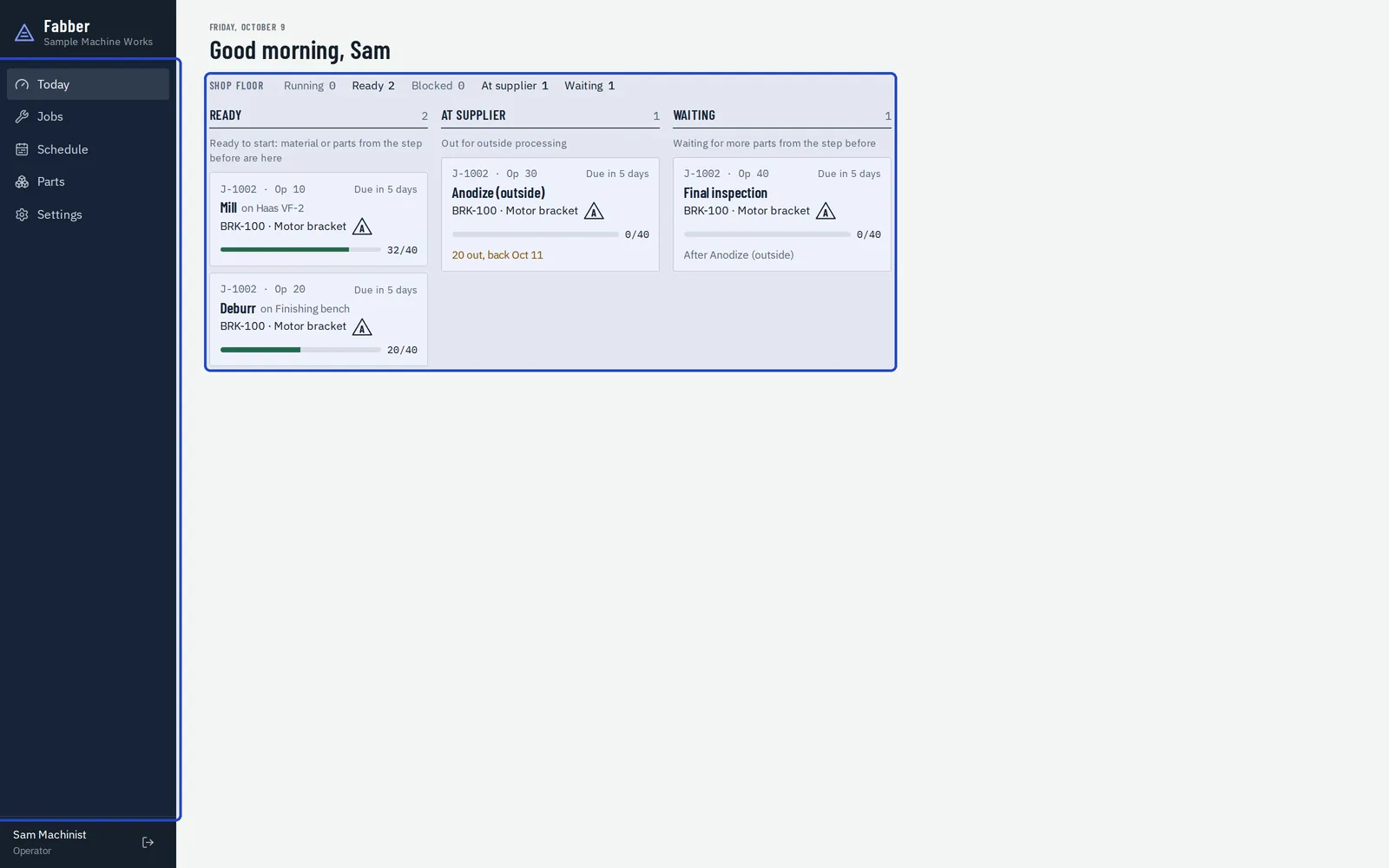
Operators see Today, Jobs, Schedule, Parts and Settings, never prices. Today's lanes show what's ready, what's at the supplier and what's waiting.
Open the job pack
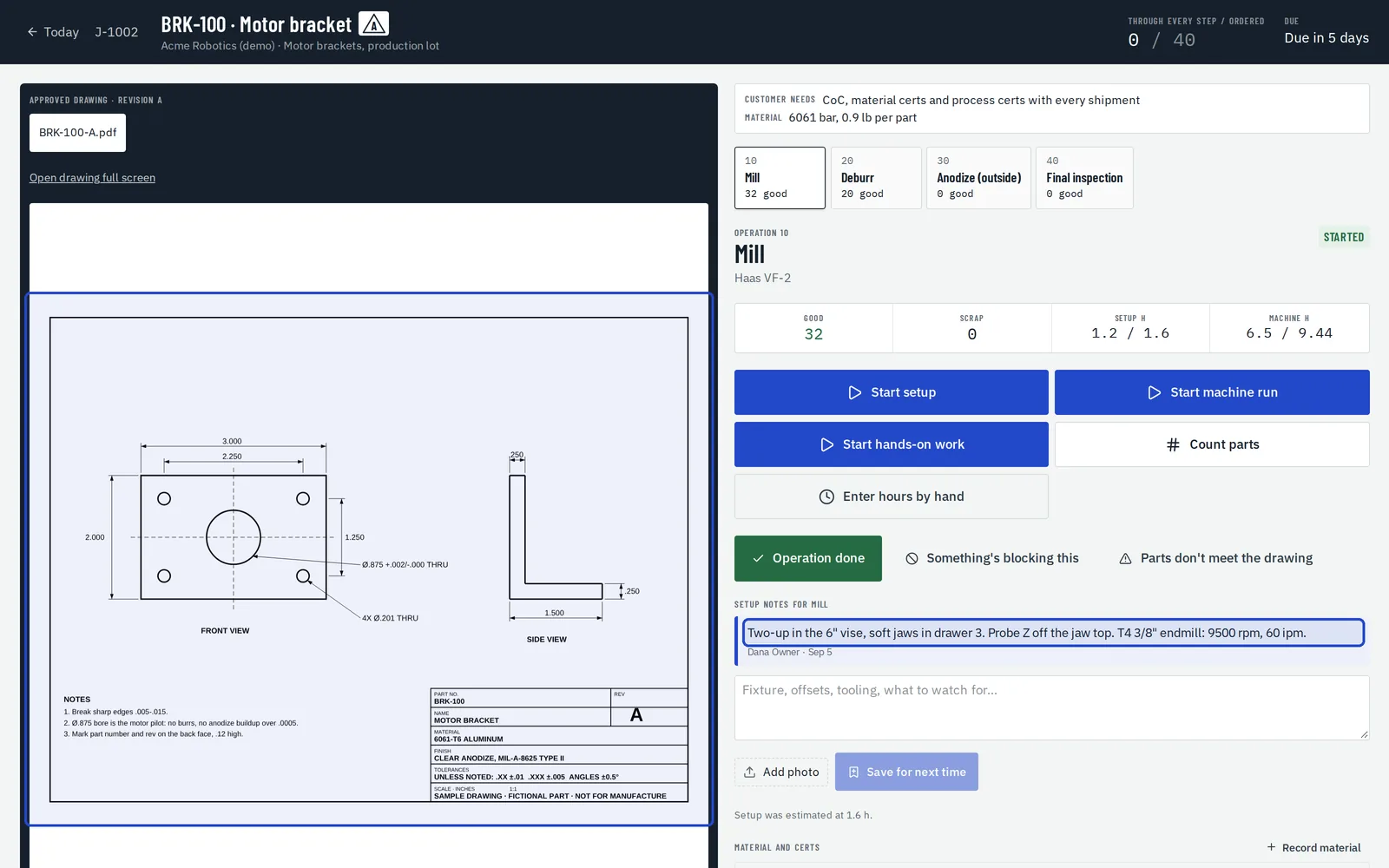
Each operation opens on its job pack: the approved drawing, the setup notes from last time, and the controls for the work.
Time the work
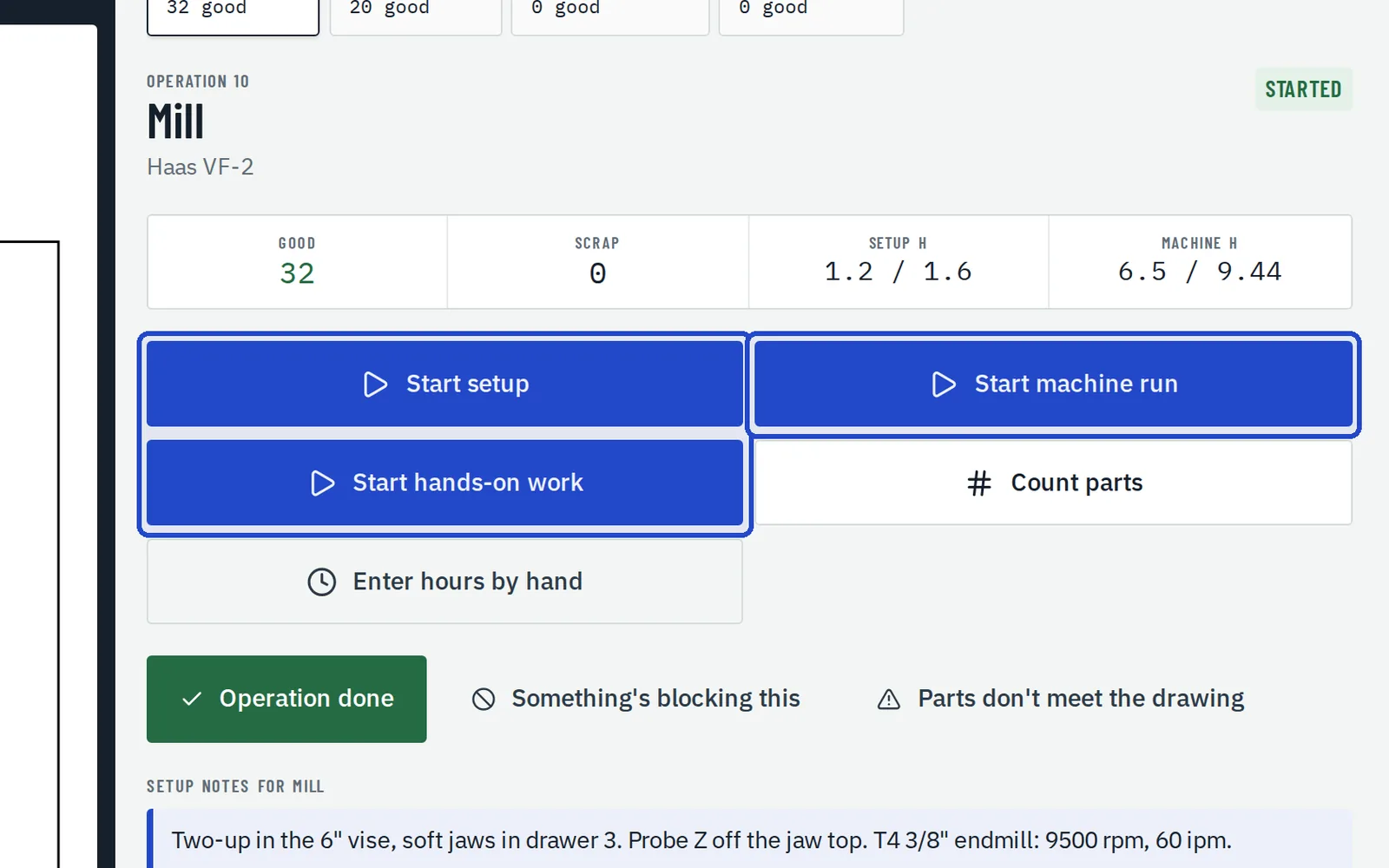
Start setup, Start machine run and Start hands-on work time each kind of work on its own. They can overlap, so an unattended run isn't costed as wages.
Count parts
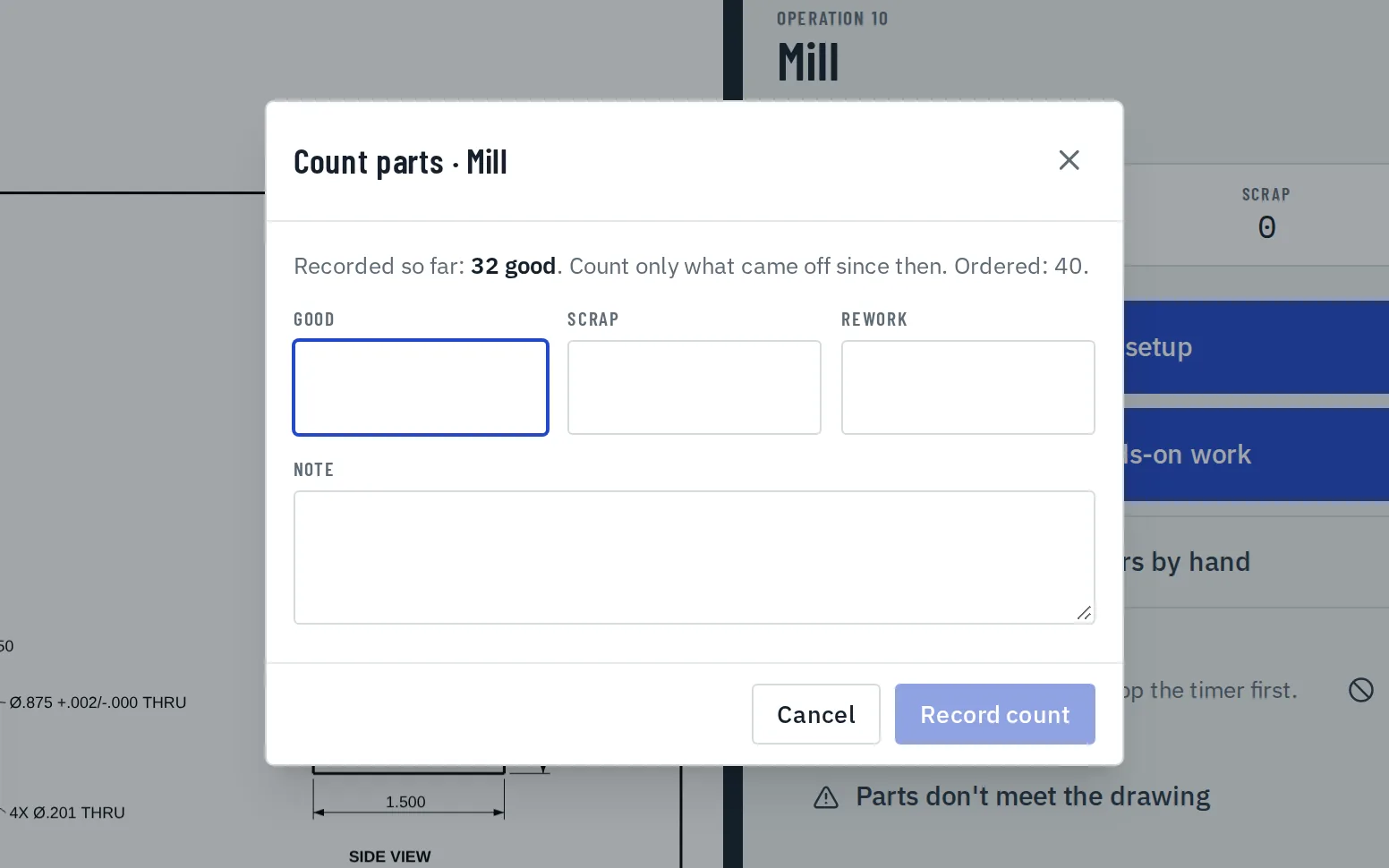
Choose Count parts to record good parts and scrap. Choose Enter hours by hand if a timer was missed.
Record the checks
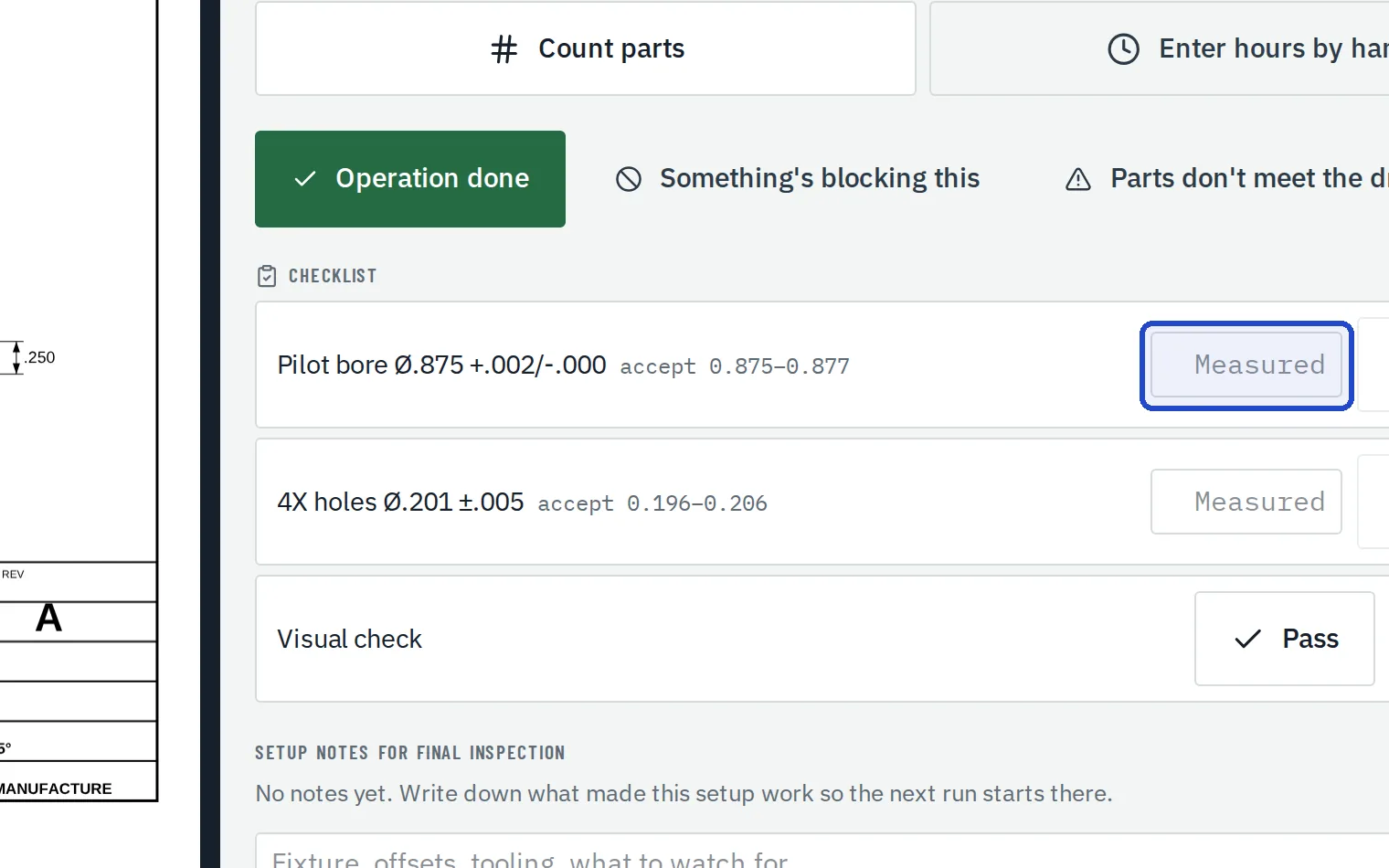
At an operation with a checklist, mark each check Pass or Fail. A check with a tolerance takes the measured value and is judged against its limits.
Report a problem
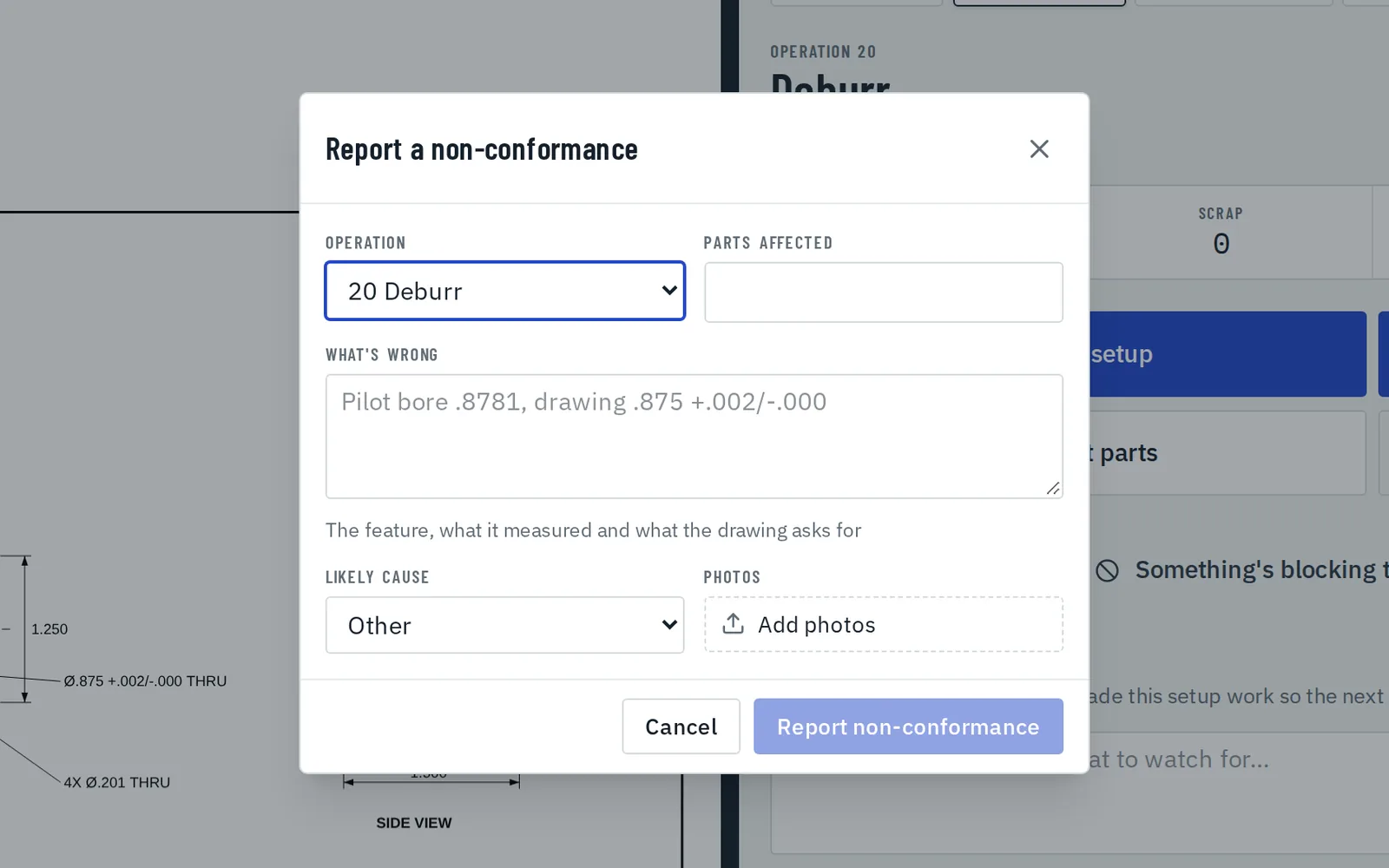
If parts don't meet the drawing, choose Parts don't meet the drawing and record the quantity, what's wrong, the likely cause and photos. Something's blocking this puts the operation on hold.
Set up a floor station
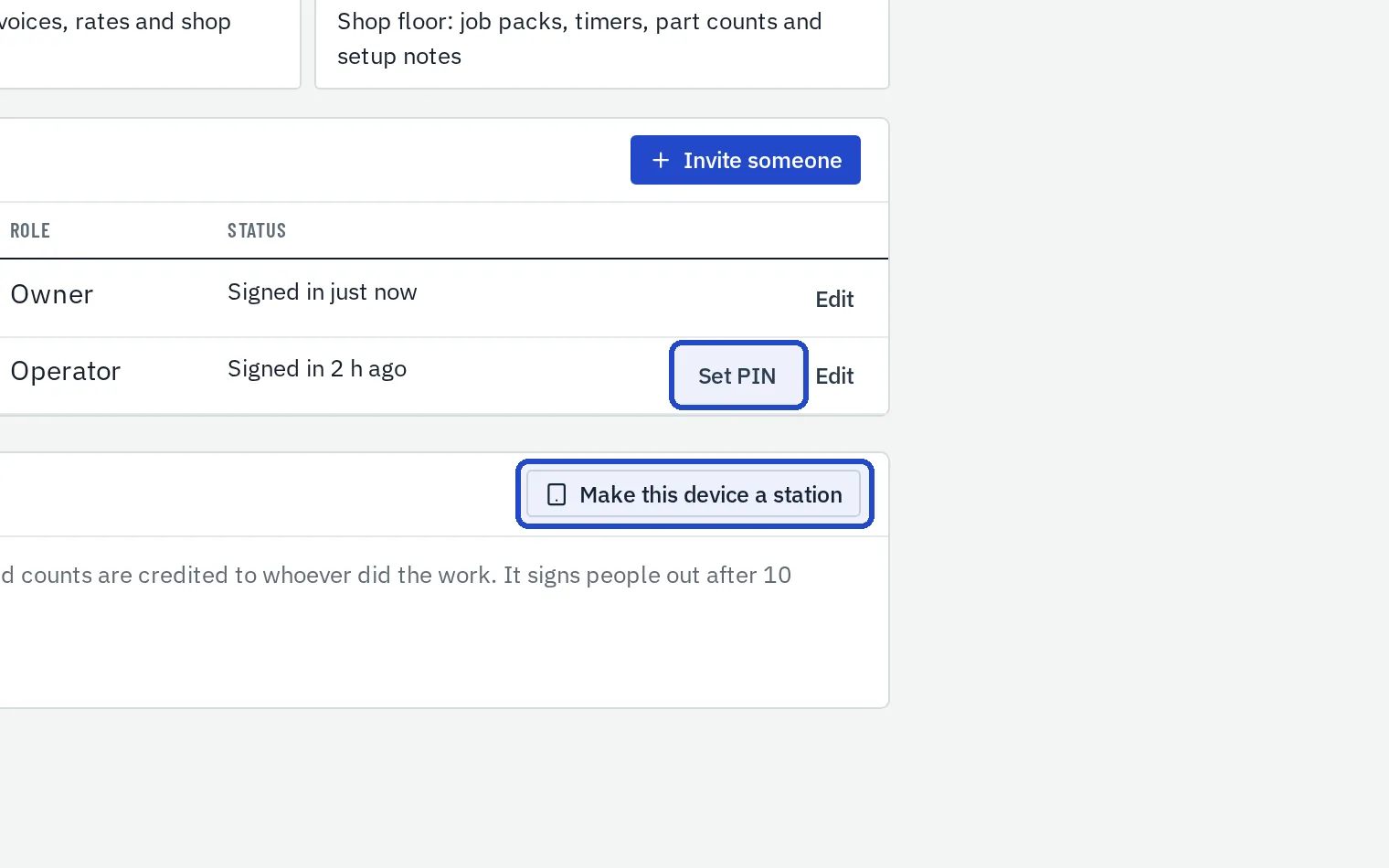
On a shared tablet, an owner or manager opens Settings, Team and chooses Make this device a station. Each operator signs in with a 4 to 6 digit PIN, and is signed out after ten minutes idle.