Part 8 of 13
When the drawing changes
A new revision never quietly replaces the drawing at the machine.
 Video coming soon
Step by step
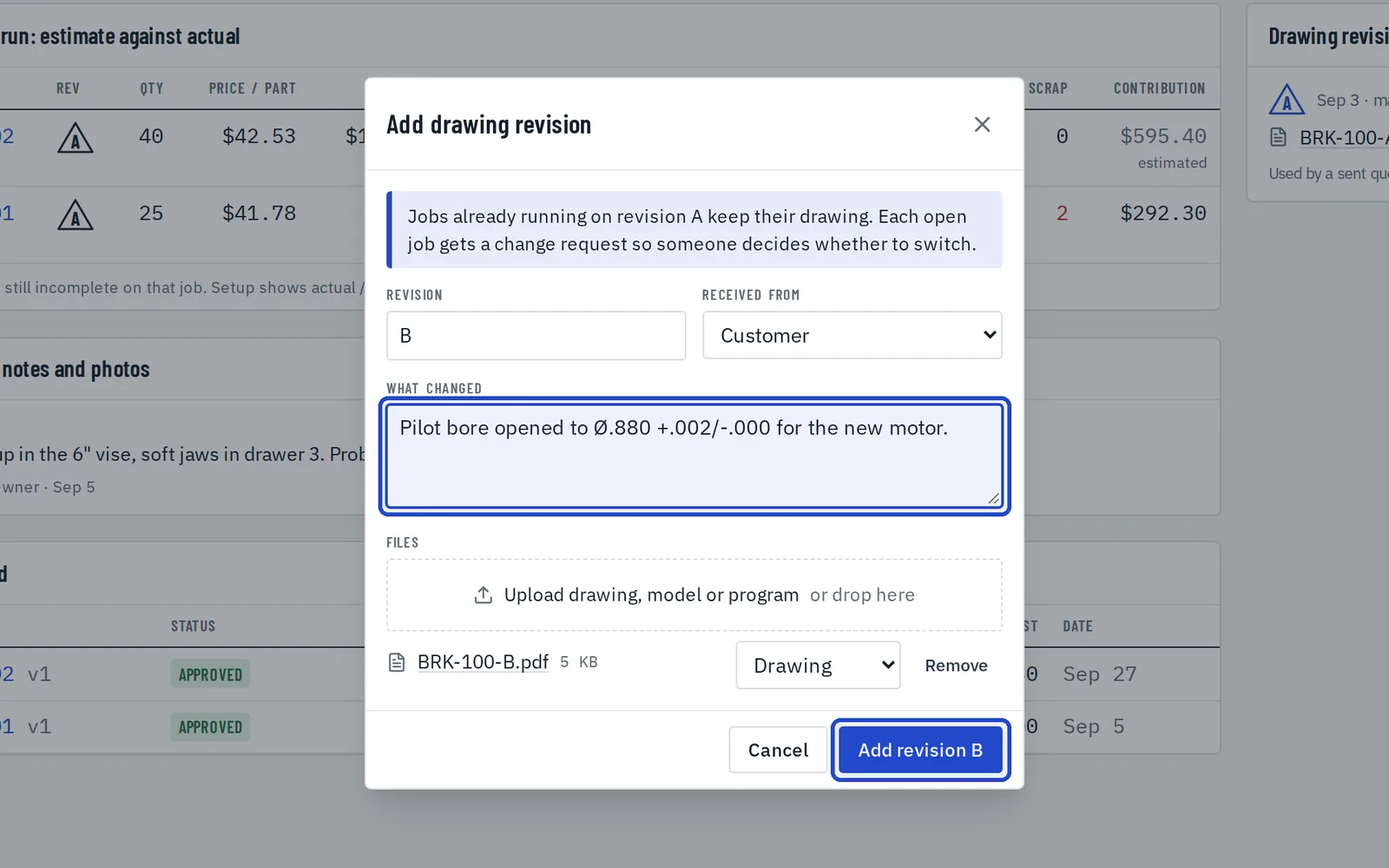
Add the new revision
On the part, choose New revision, say what changed and upload the new files, then choose Add revision.
Open jobs get a change request
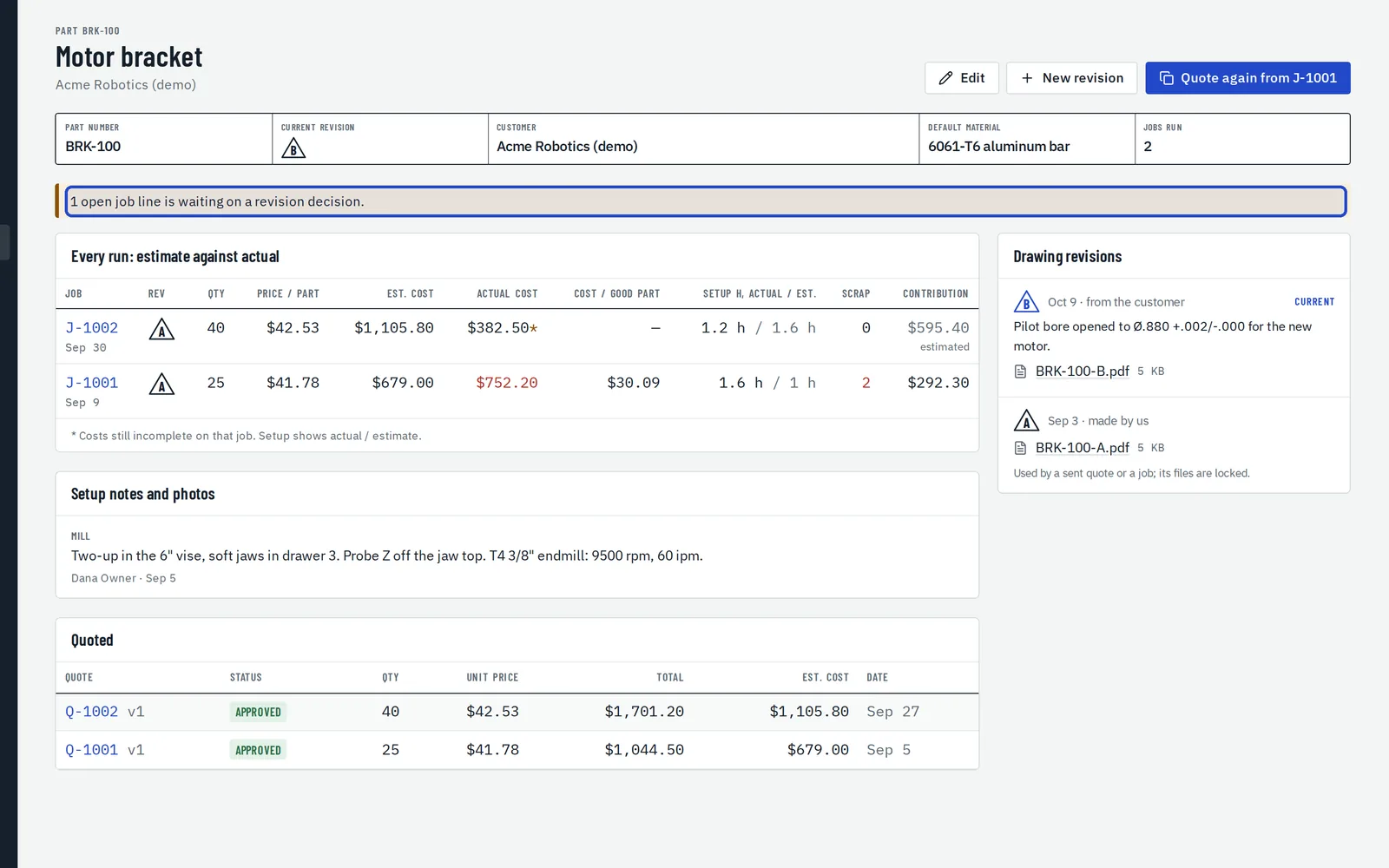
Each open job on the older revision gets a change request, and the part shows how many are waiting.
Decisions wait on Today
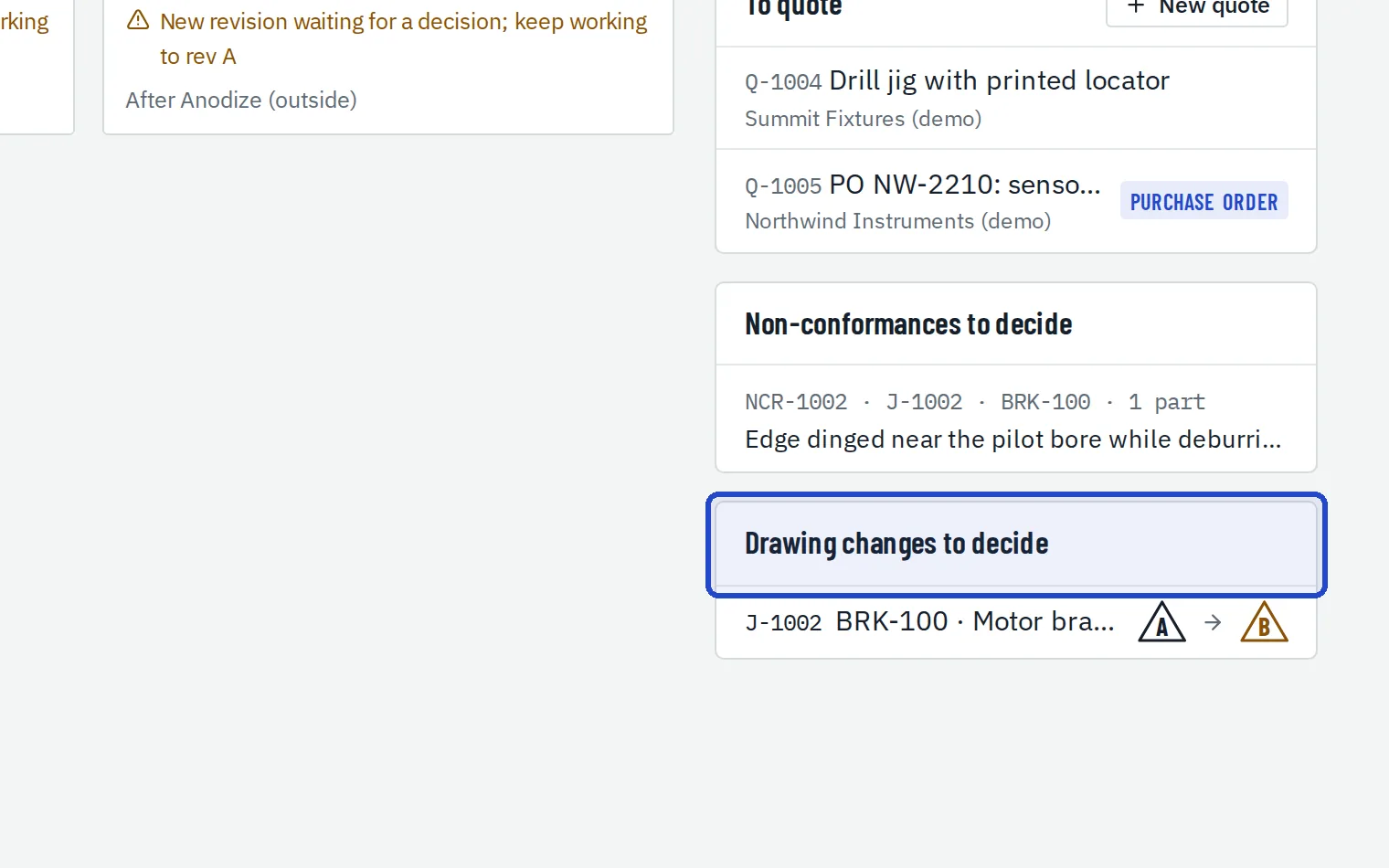
Owners and managers see them on Today, under Drawing changes to decide.
The floor keeps the approved drawing
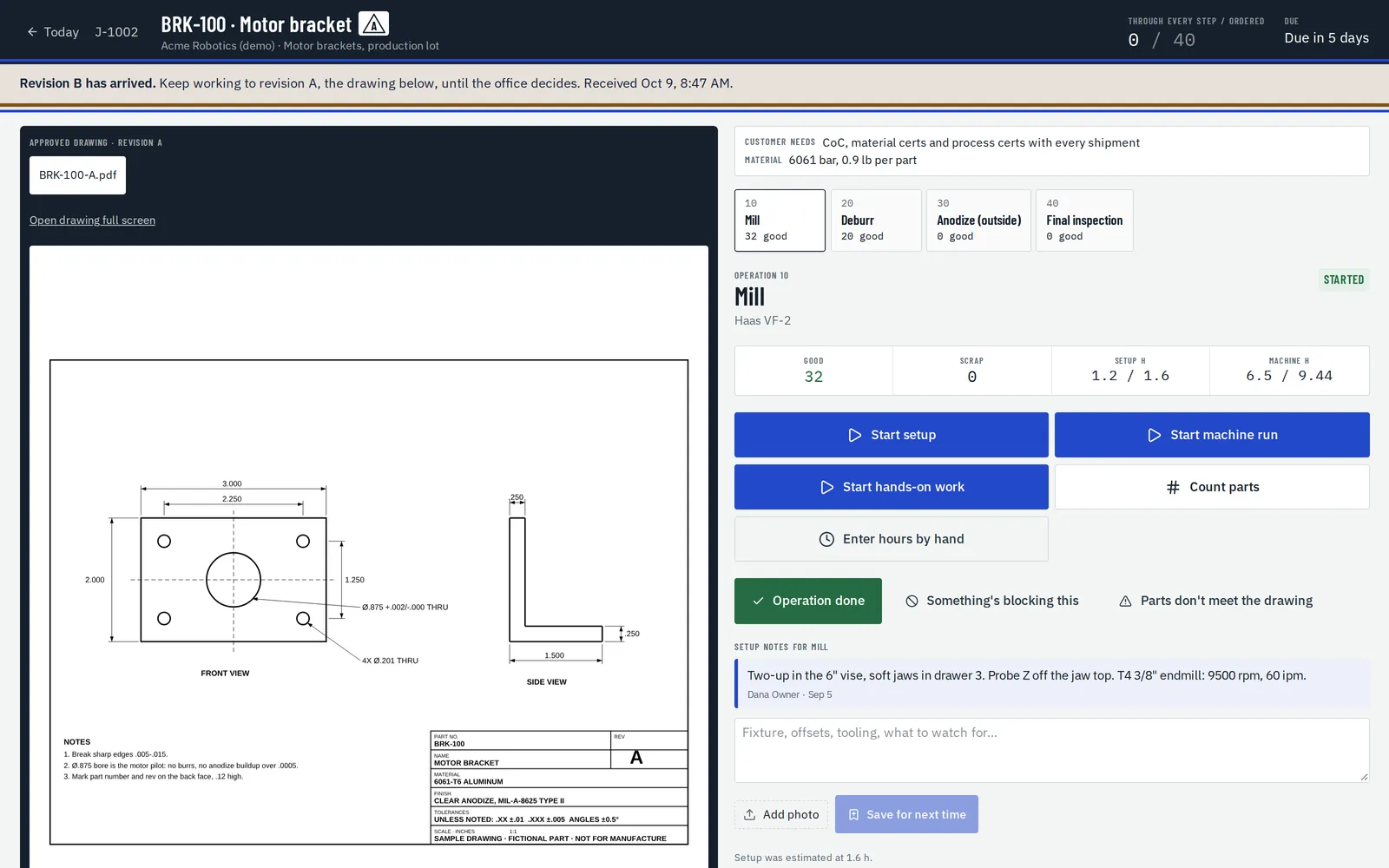
Until someone decides, the job pack tells the operator a new revision has arrived, and to keep working to the approved one.
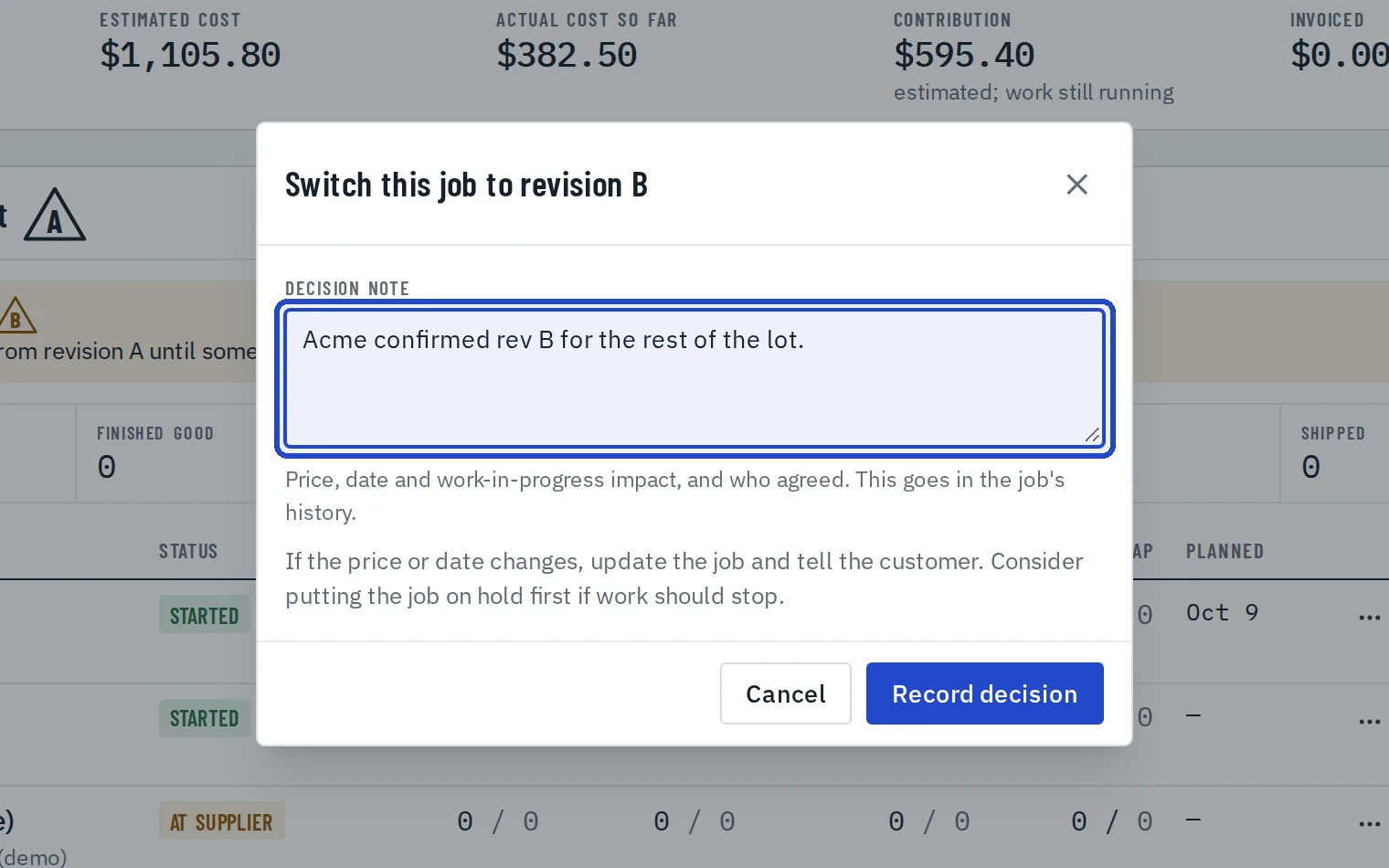
Switch or keep
On the job, choose Switch to B or Keep A, and add a decision note. Parts already made stay recorded against the revision they were made to.