Part 2 of 13
Set up your shop
Your shop's details, labor rates, machines, materials and common operations. About twenty minutes.
 Video coming soon
Step by step
Fill in your shop
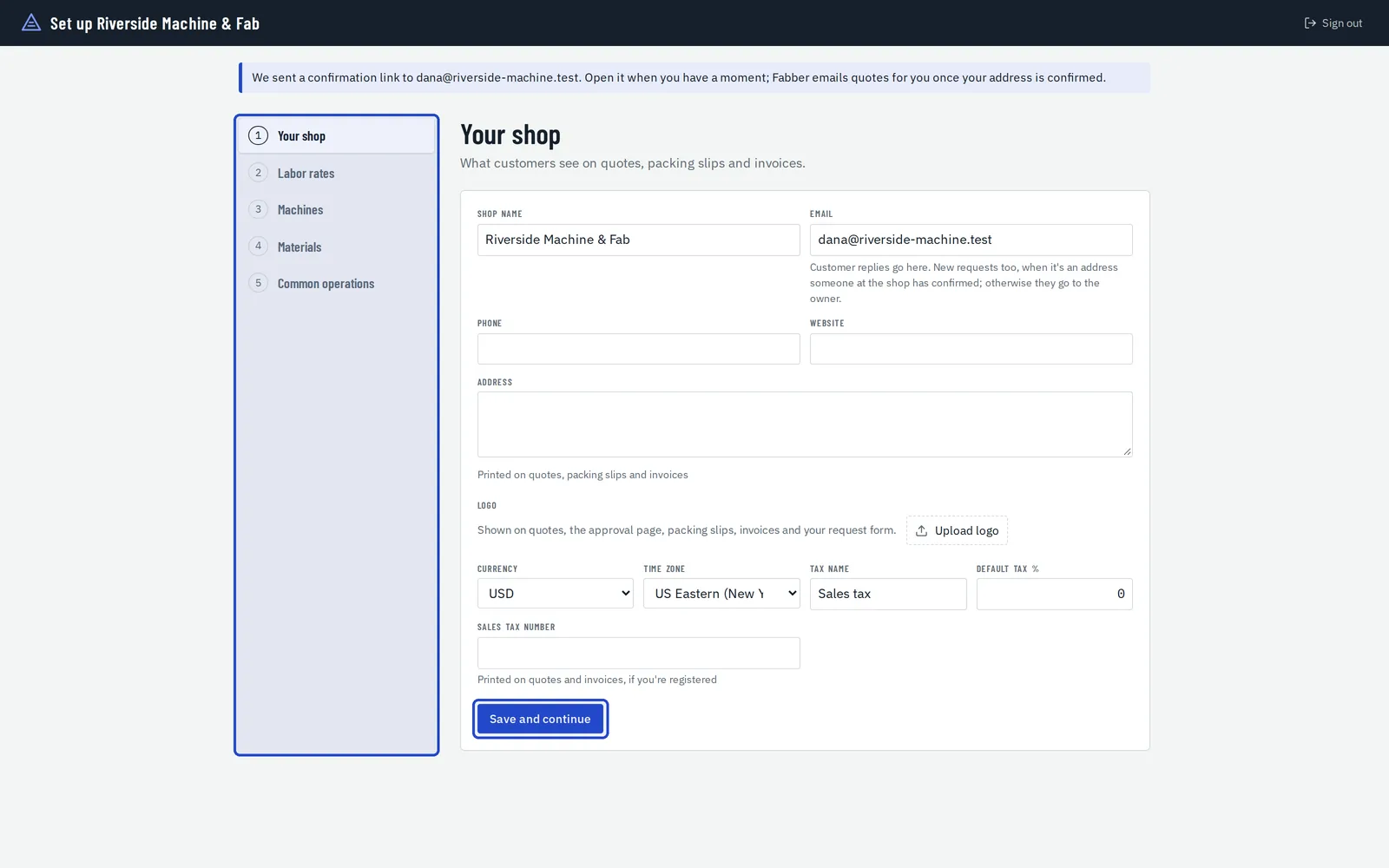
After you sign up, Fabber walks you through five steps. The first is your shop: its name, email, address and logo, your currency, time zone and tax. Choose Save and continue.
Add your labor rates
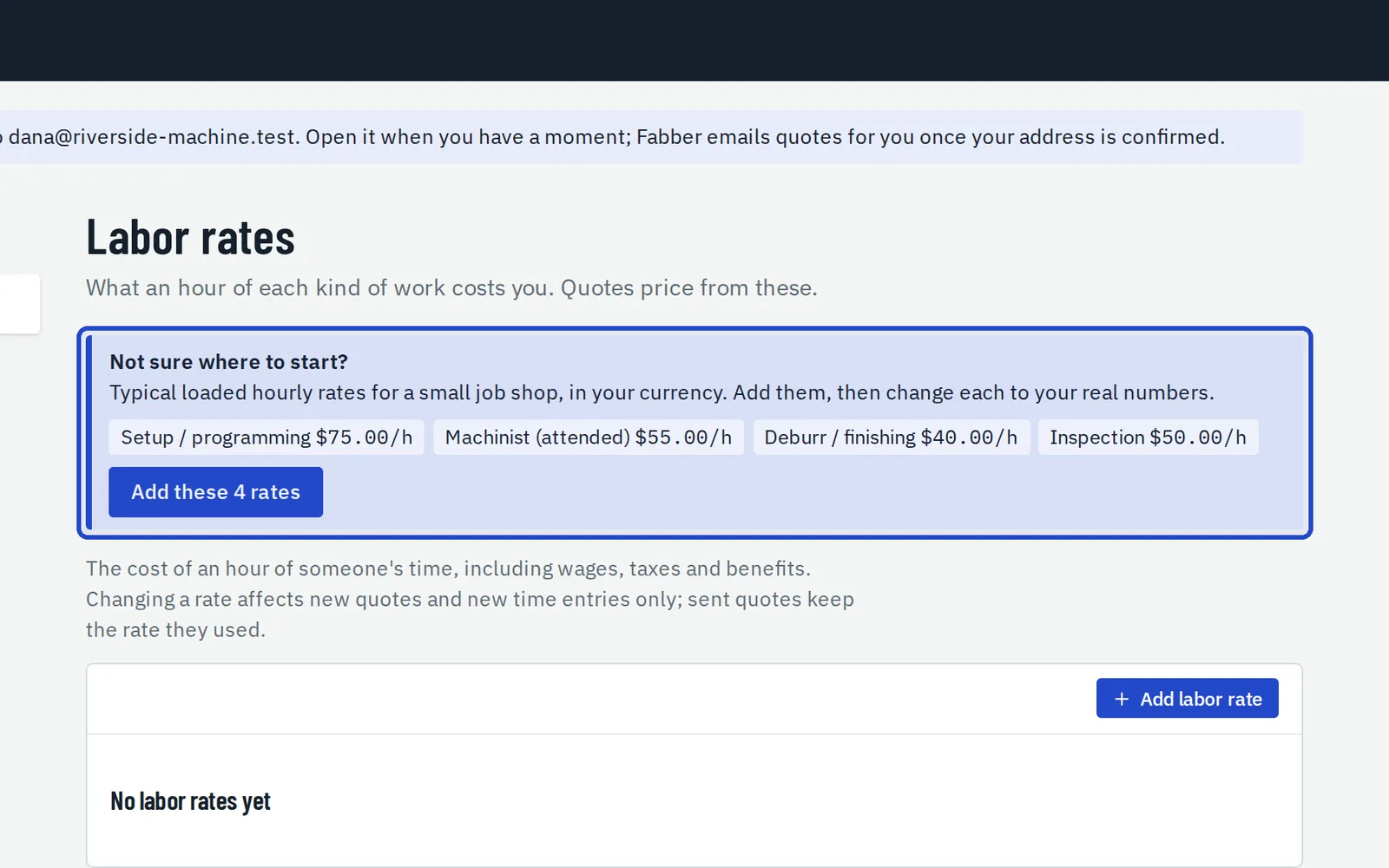
Enter what an hour of each kind of work costs you: setup, attended machining, deburring and inspection. Not sure where to start? Choose Add these 4 rates and change them to your own numbers.
Add your machines and work areas
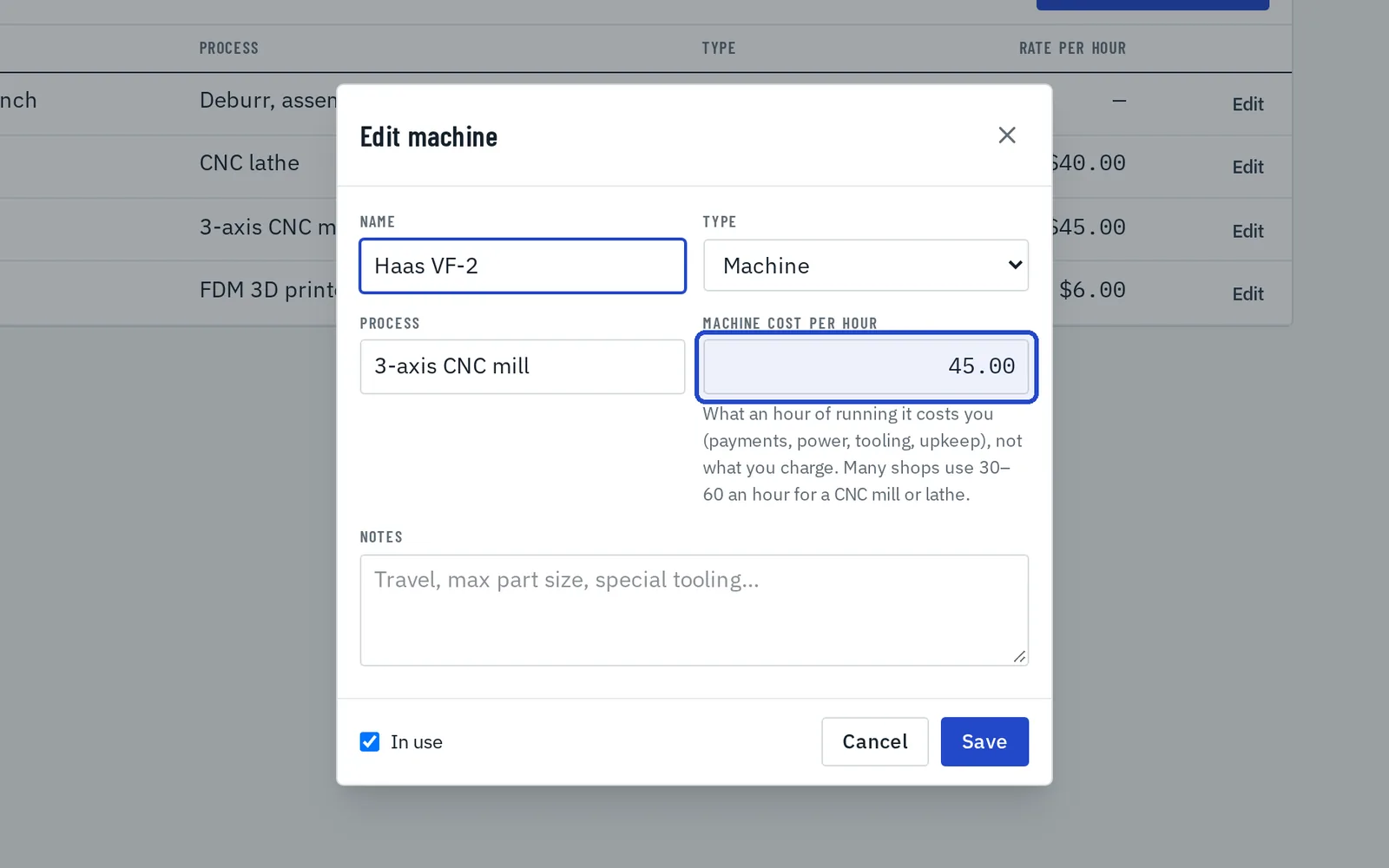
In Settings, Machines, choose Add machine or area. For a machine, enter its cost per hour: what an hour of running it costs you, not what you charge.
Add the materials you buy
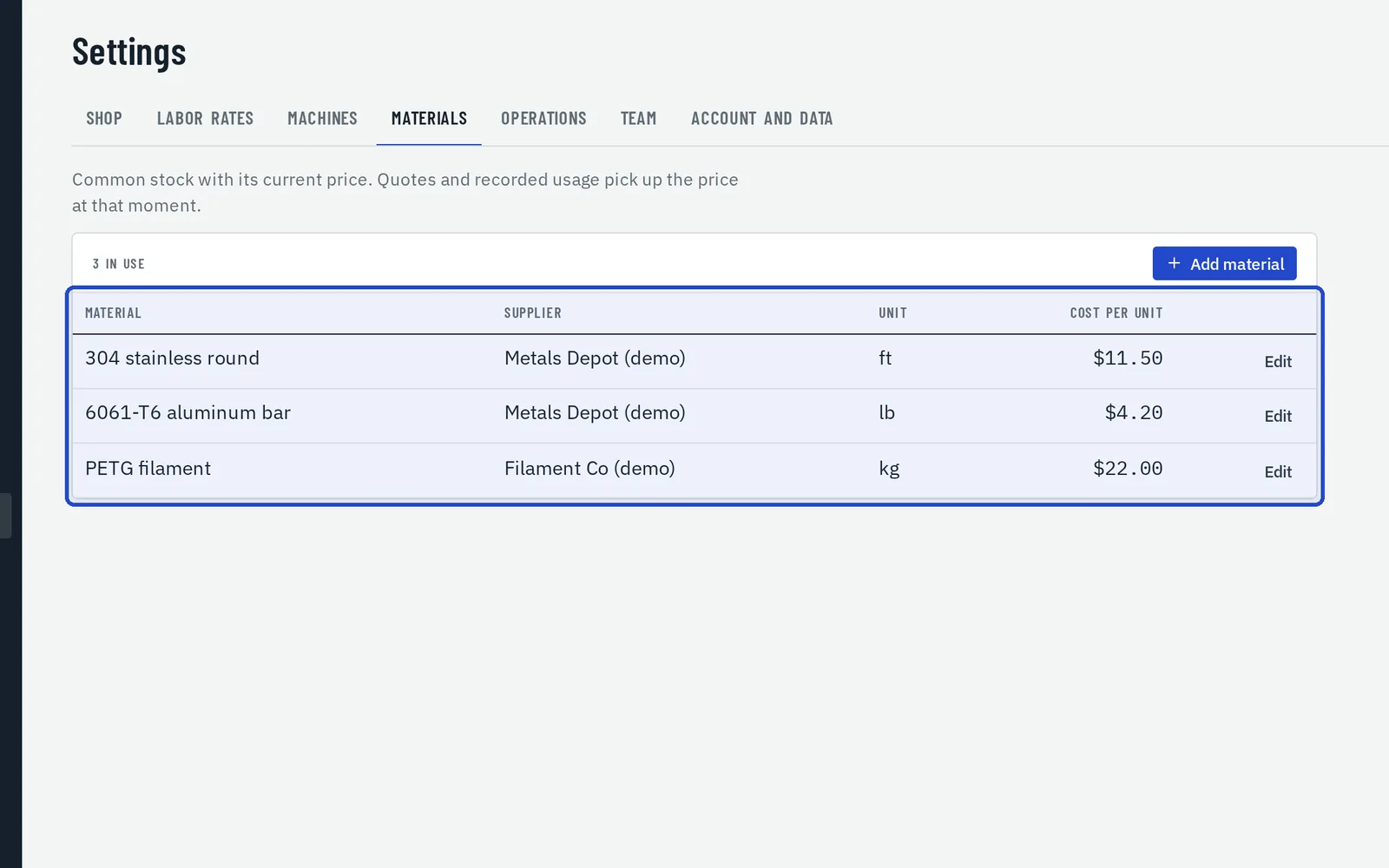
In Settings, Materials, add each material with its unit (lb, kg, ft, in, sheet or each), its cost per unit and its supplier. Quotes cost material from this list.
Save your common operations
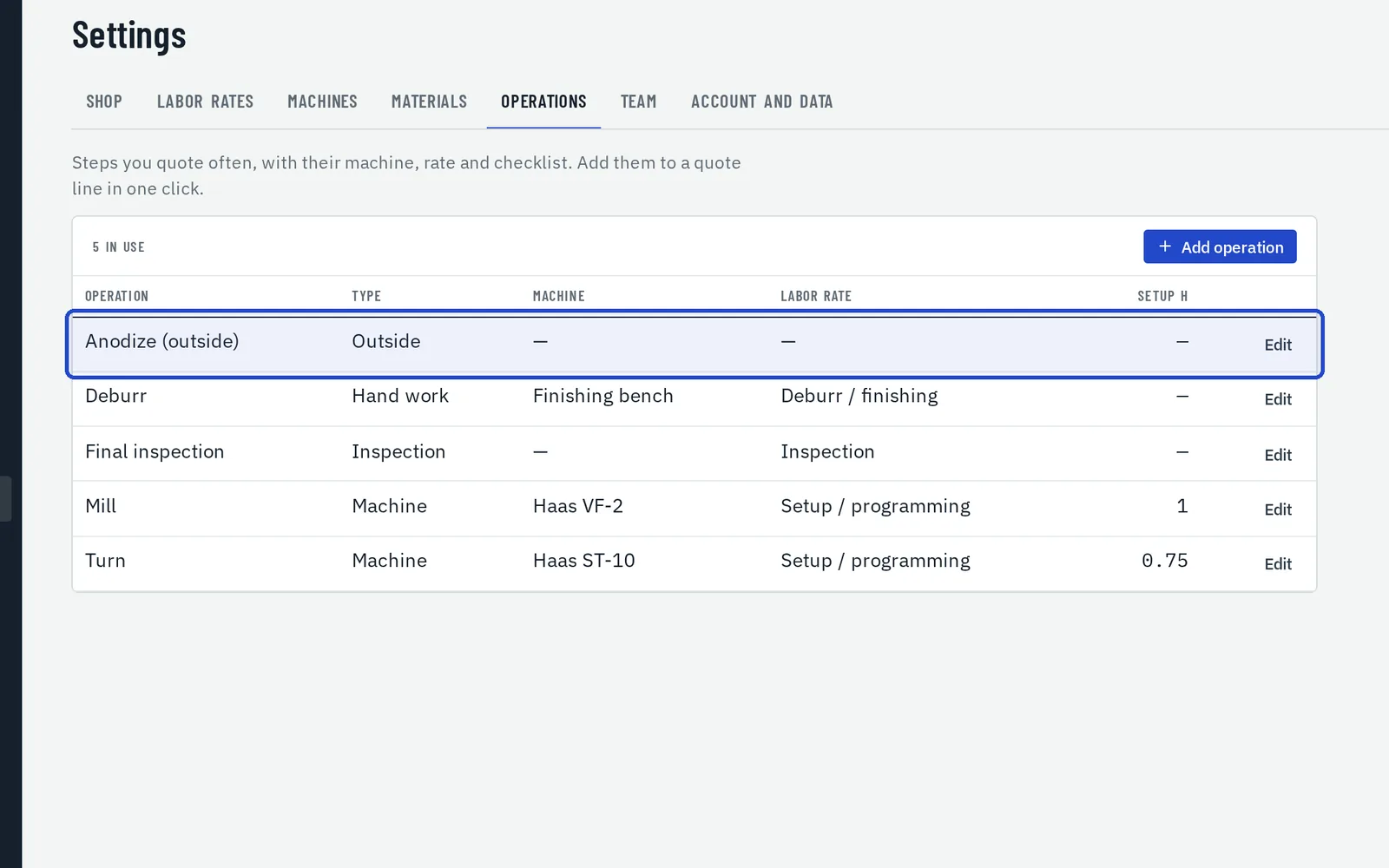
In Settings, Operations, save the operations you quote most, like Mill, Deburr or Anodize, with their type, machine, labor rate, typical setup hours and checklist. Any quote can add them in one click.
Set your quote defaults
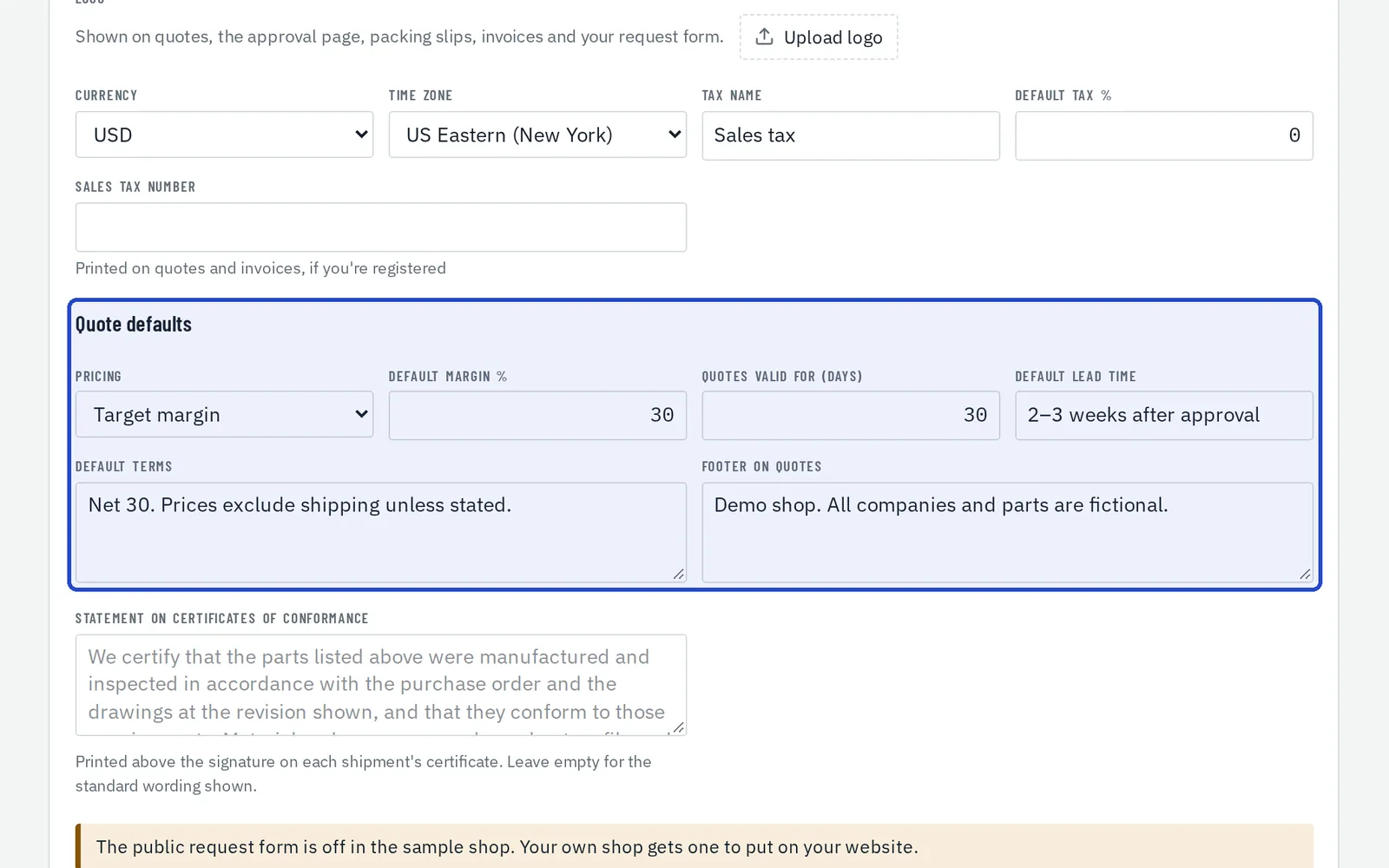
In Settings, Shop, under Quote defaults: price by target margin or by markup, how long quotes stay valid, and your default lead time and terms.