Part 3 of 13
Customers and parts
Who you work for, what they need with every shipment, and the drawings you make parts to.
 Video coming soon
Step by step
Add a customer
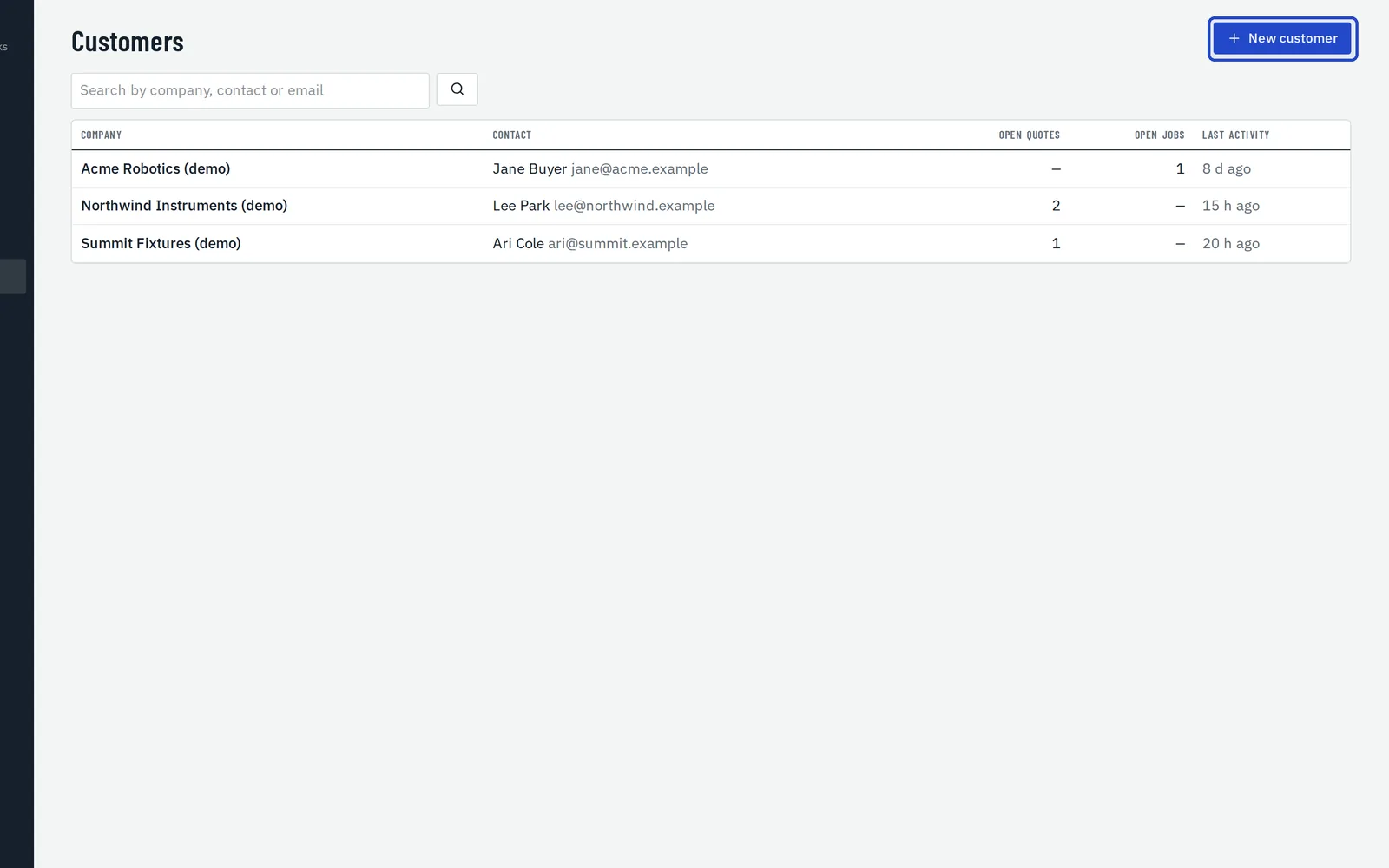
In Customers, choose New customer and enter the company. The contact's email is where quotes and approval links go.
Set their terms and paperwork
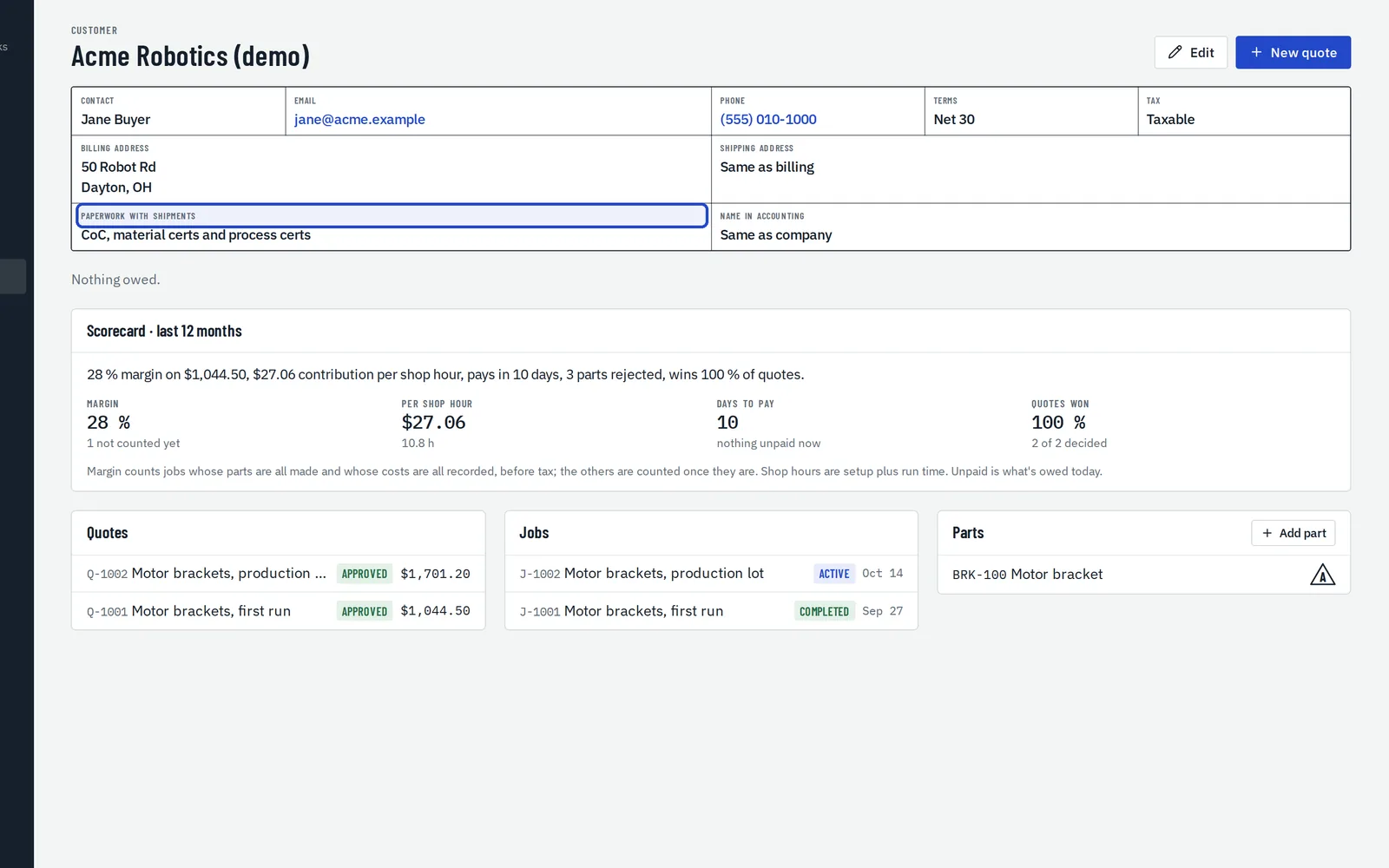
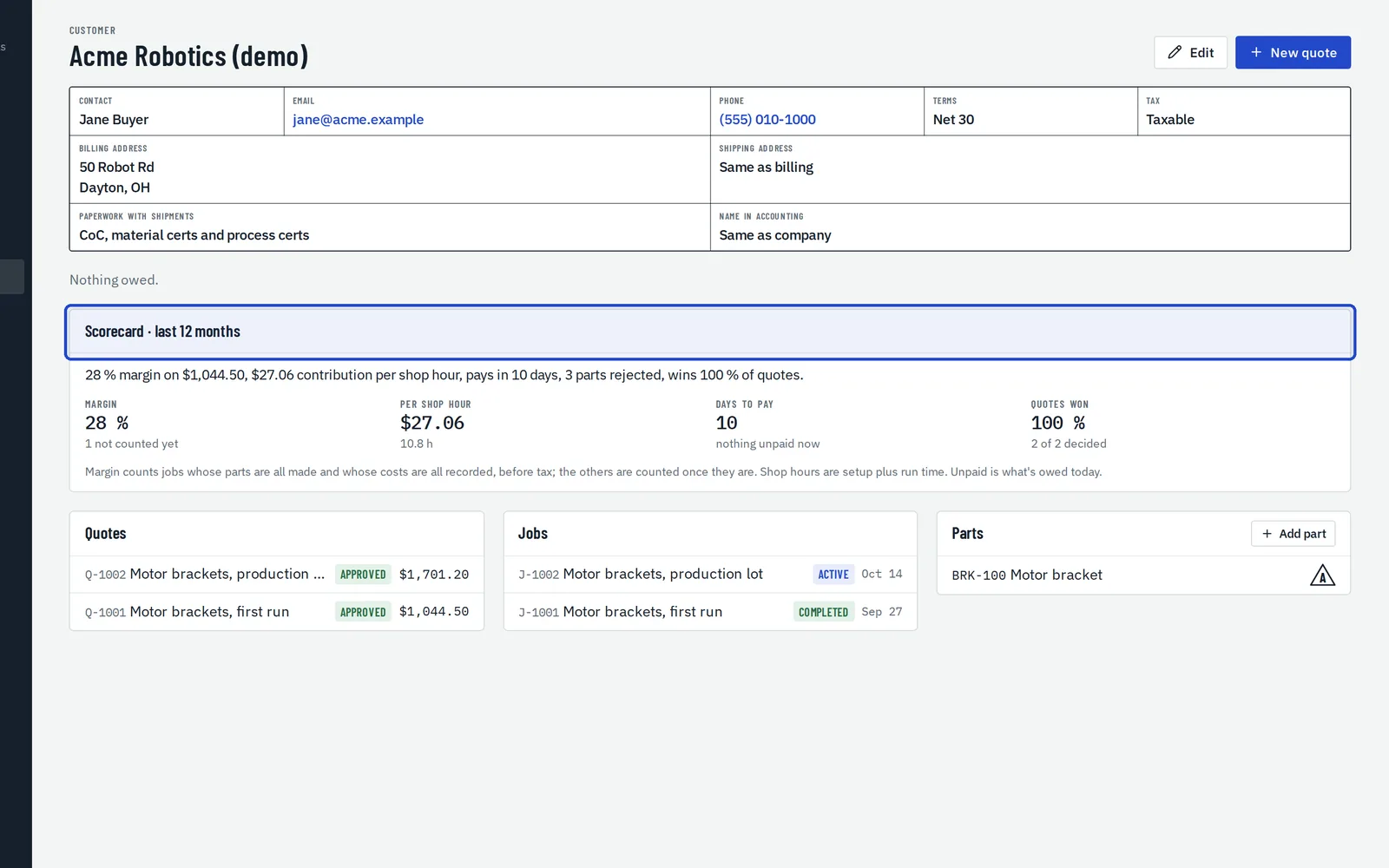
On the customer's page, choose Edit to set their payment terms, tax exemption, addresses, the name used in your accounting system, and the paperwork they need with every shipment: a certificate of conformance, material certs, outside processing certs or a first article inspection report.
Check the scorecard
The scorecard covers the last 12 months: margin, earnings per shop hour, how fast they pay, and how many quotes they approve.
Keep revisions, notes and history
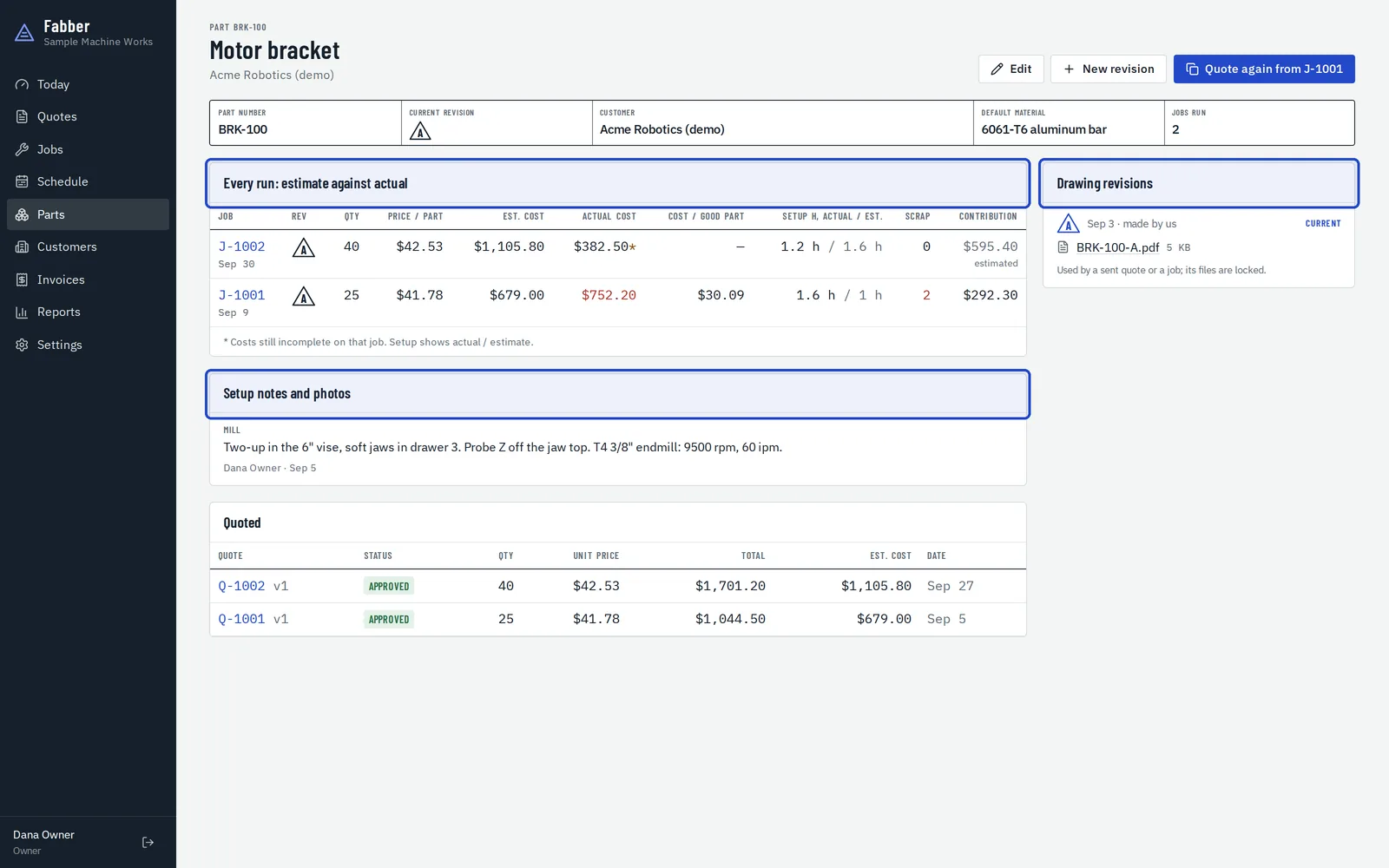
A part's page keeps its drawing revisions, its setup notes and photos, and every run's estimate against actual.
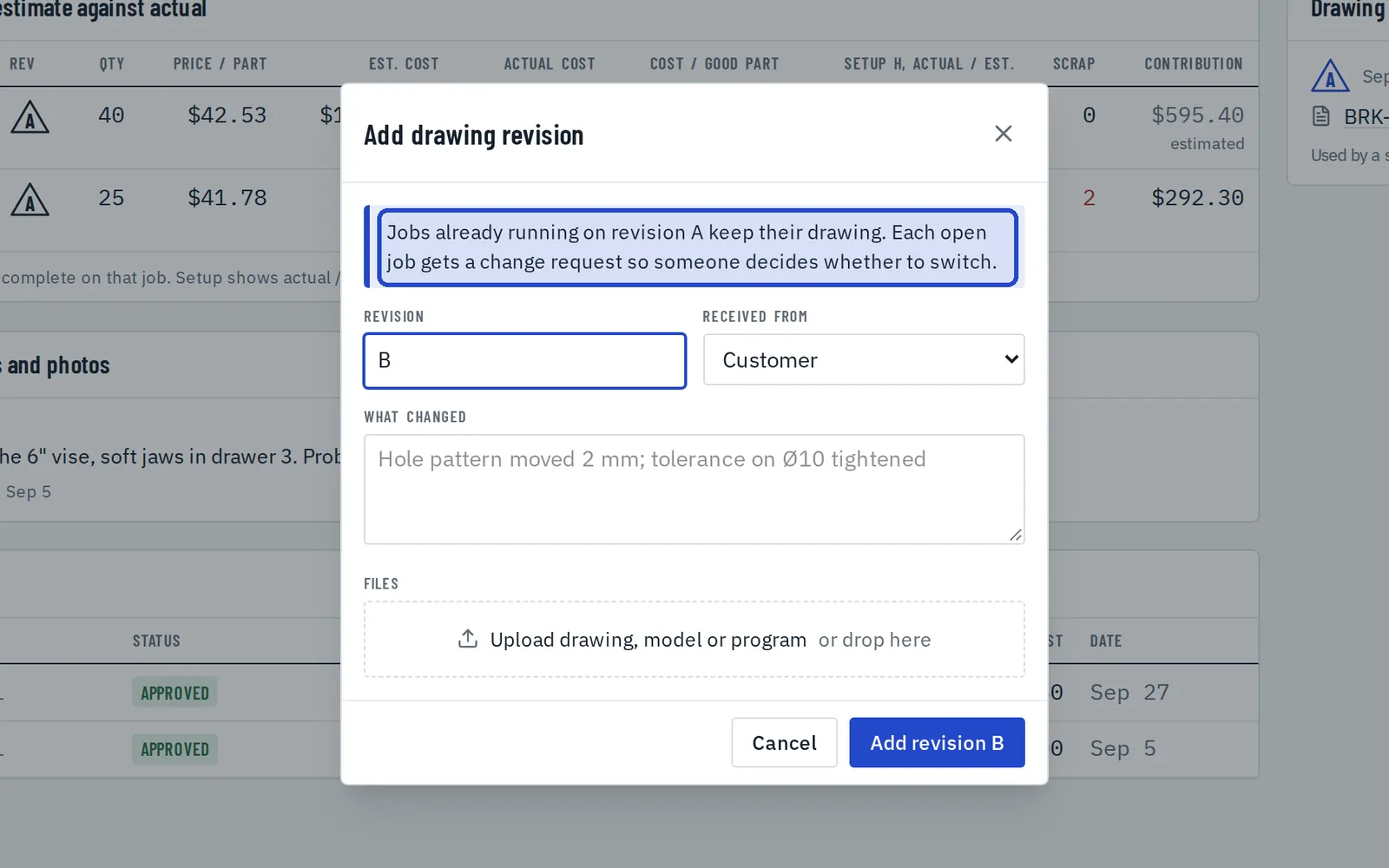
Add a new revision
Choose New revision, say what changed, and upload the drawing, model or program. Jobs already running keep the revision they were approved on.