Part 5 of 13
Send it for approval
Send one exact version, and get it approved online with the customer's PO.
 Video coming soon
Step by step
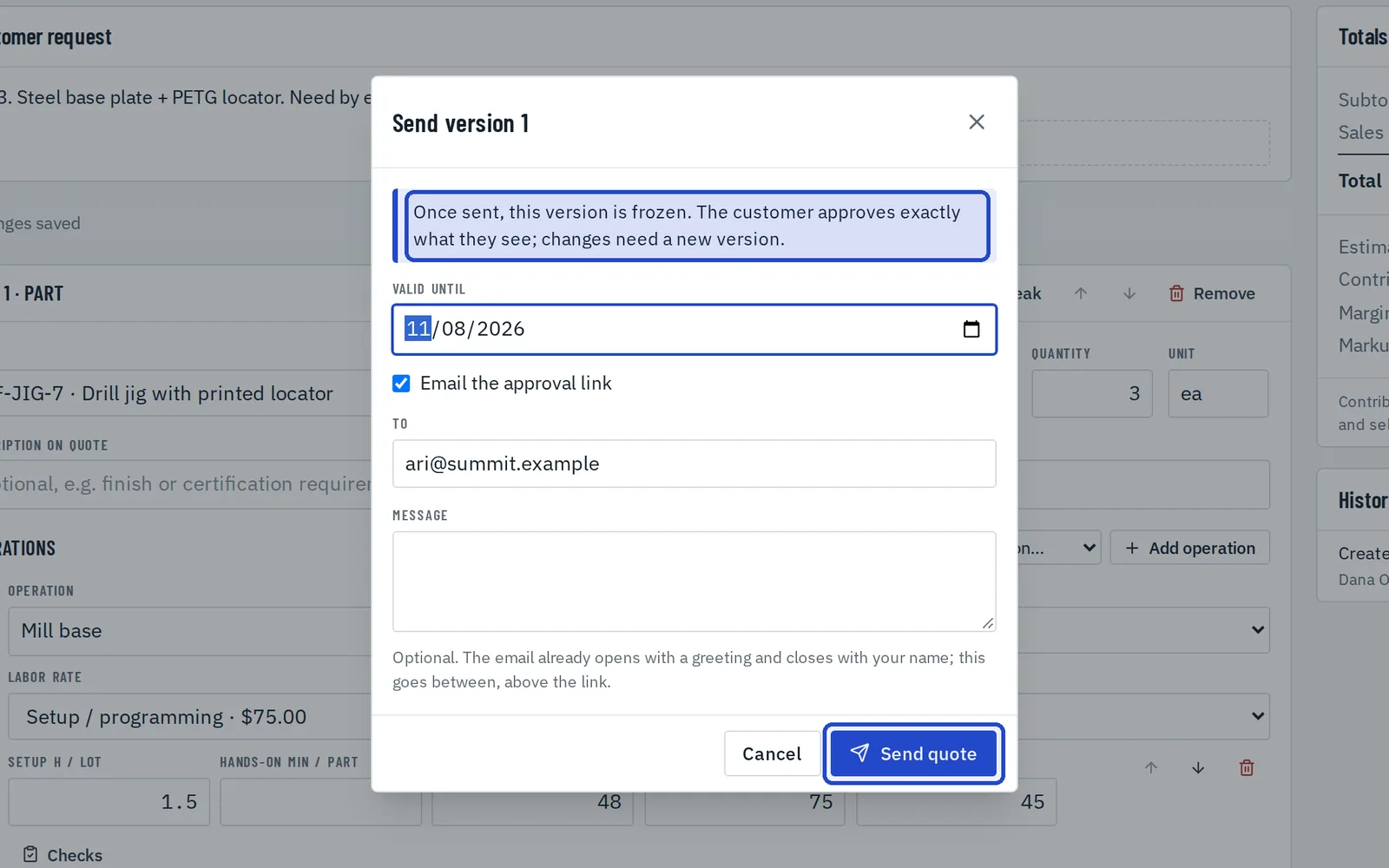
Send the quote
When nothing is missing, choose Send to customer. Check the valid-until date and the message, then choose Send quote. That version is now frozen; to change anything, start a new version.
Follow the link
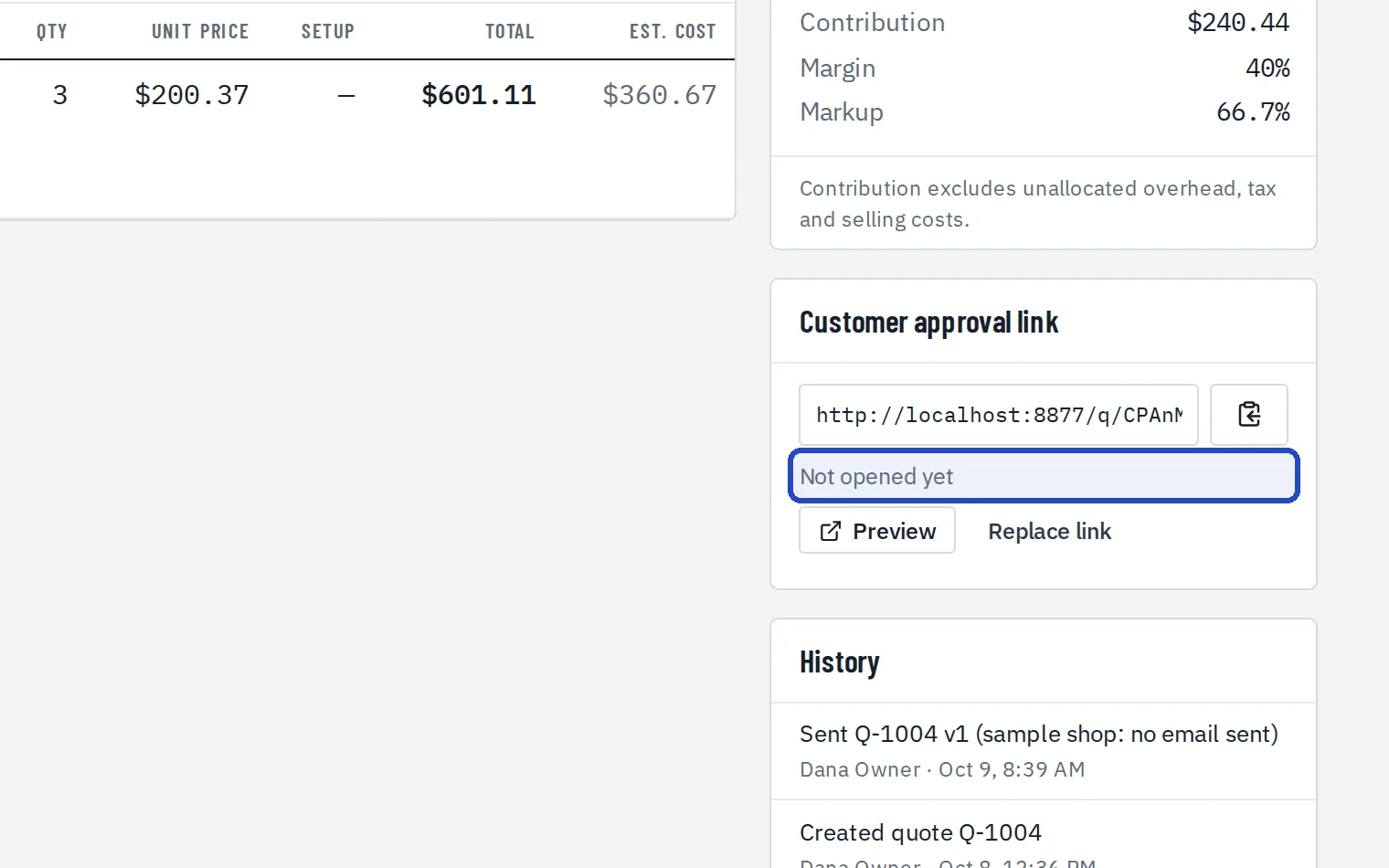
The quote shows the customer's link, and how often and when it's been opened. Copy it, preview it, or replace it if it went to the wrong person.
The customer approves
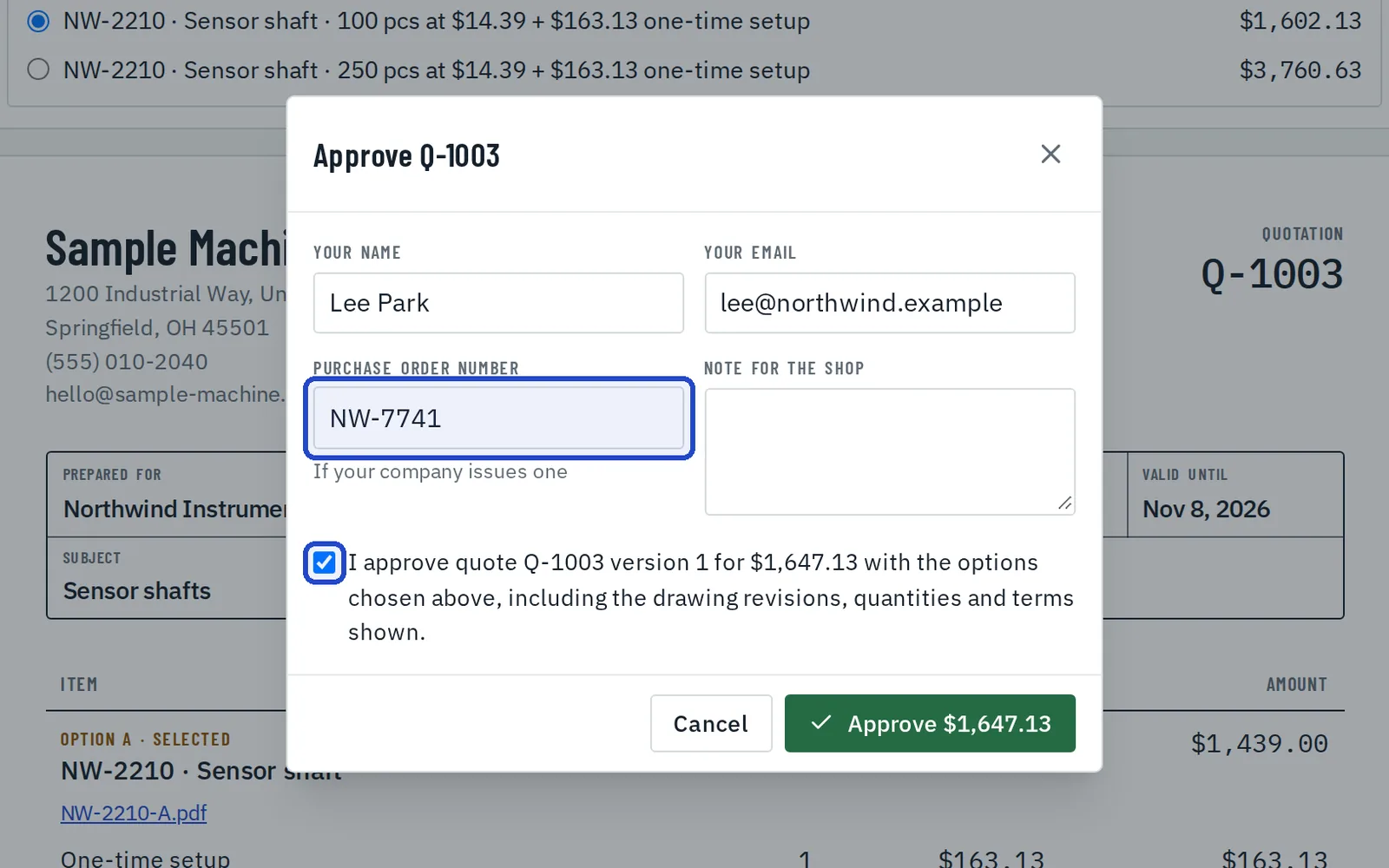
From the link, the customer chooses a quantity if you offered breaks, then approves with their name, email and PO number. They can also ask for changes or decline.
See the approval
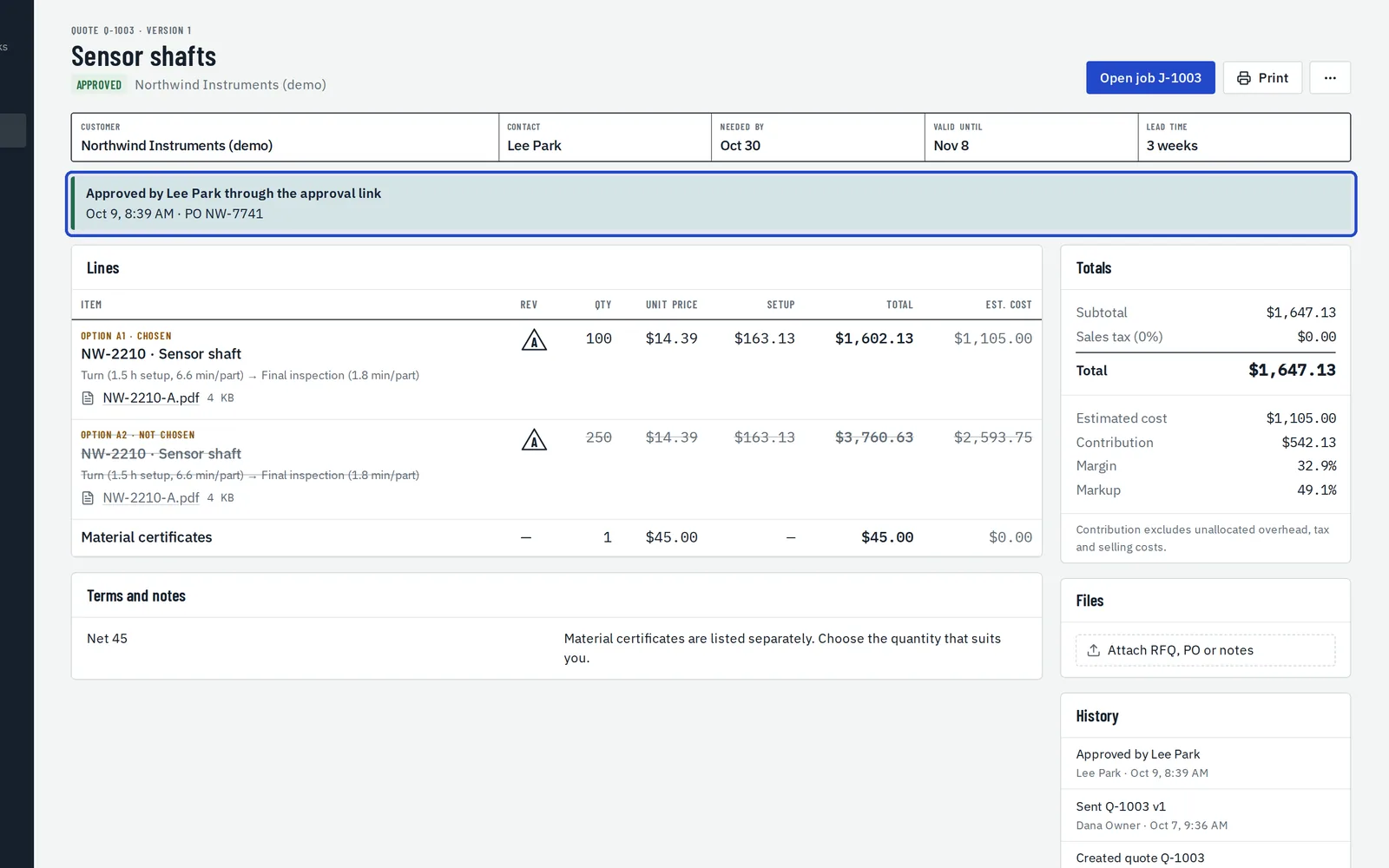
Back in Fabber, the quote shows who approved it, when and with which PO, and the job is already created.
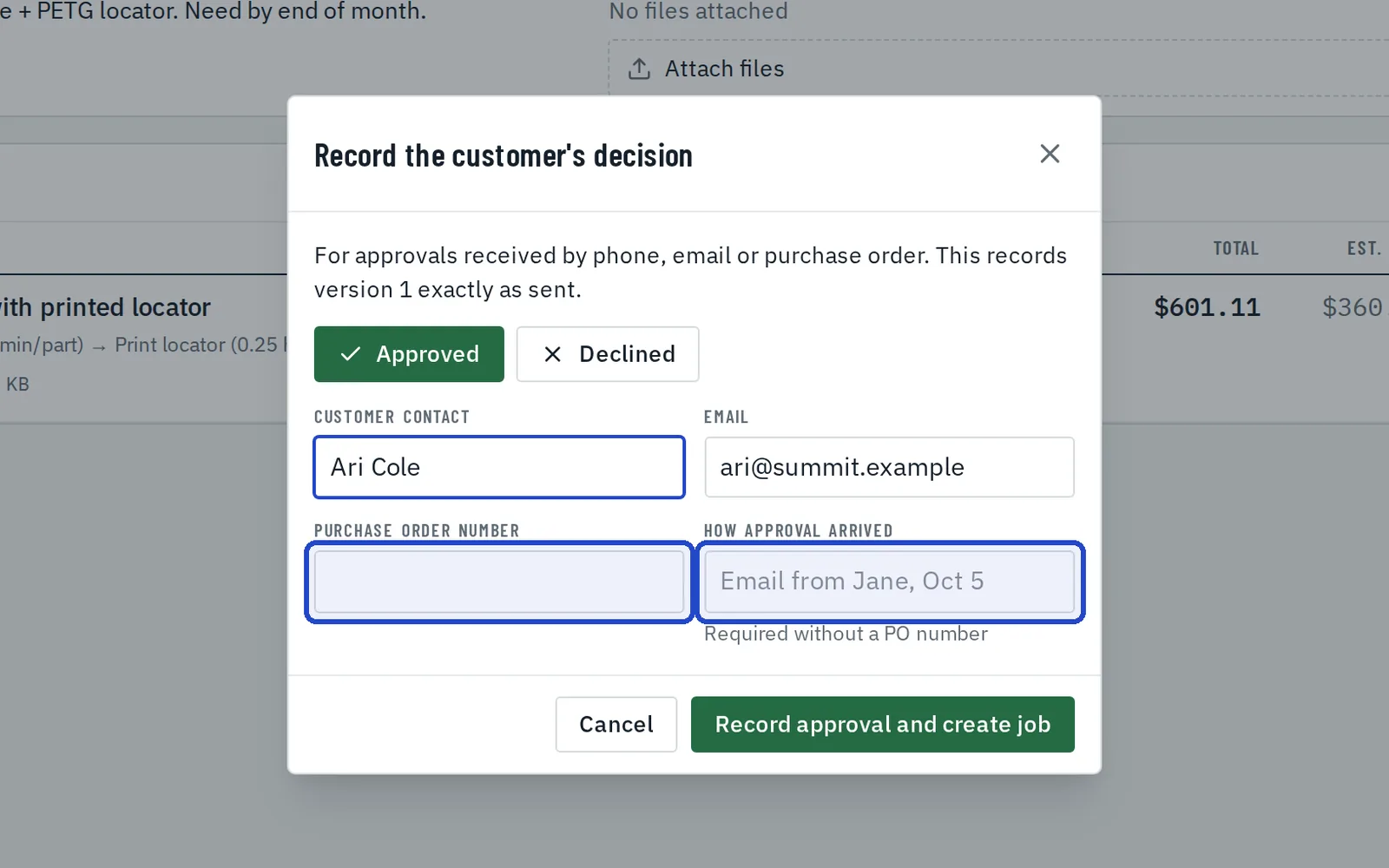
Record an approval yourself
If the customer approves by phone or email, choose Record customer decision and enter their PO number, or how the approval arrived.